
Using a VPN on Smart TVs and Consoles
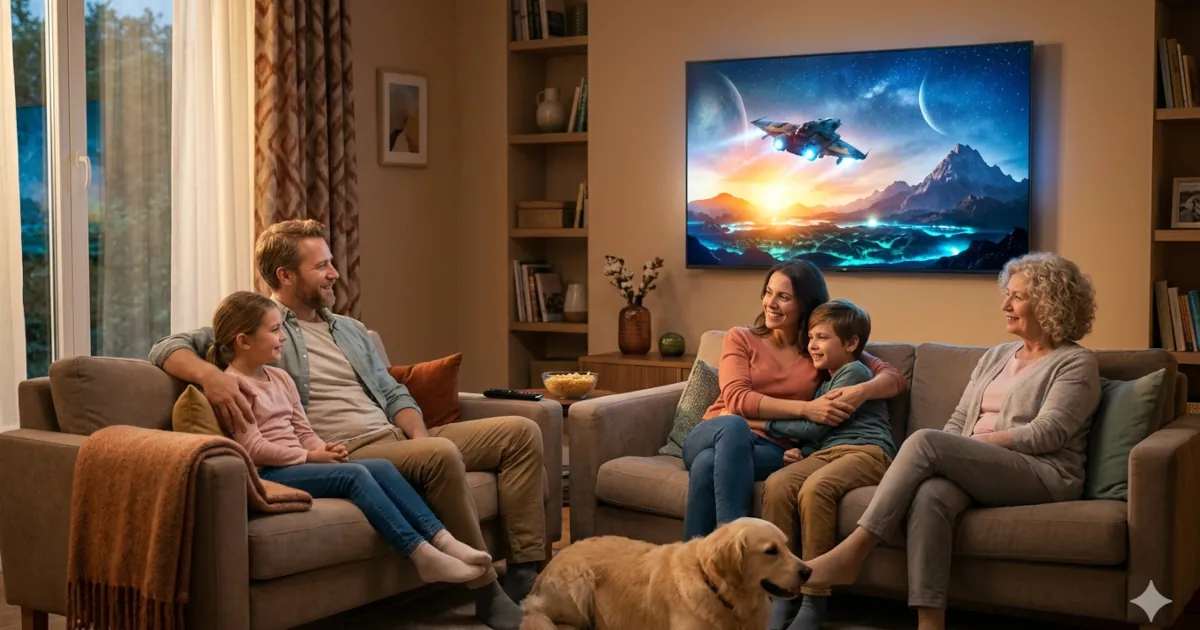
You can protect your streaming setup with a VPN. If you’ve built a comfy digital life around movies, shows, and online gaming, a VPN adds privacy and can help smooth out throttling. It also keeps your home Wi‑Fi a little safer. The catch is that TVs and consoles don’t always play nicely with VPNs. The setups below work around that for each kind of device.
Why put a VPN on your TV or console?
- Privacy: Hide what you watch and play from snoopy networks and nosy ISPs.
- Fewer slowdowns: ISPs sometimes throttle streaming or gaming traffic. A VPN can help even things out.
- Travel and consistency: On hotel or dorm Wi‑Fi, a VPN adds a layer of protection when you sign in.
- Fewer regional quirks: A VPN can help when services behave oddly abroad, though you should always follow the service’s terms and your local laws.
Think of it as a seatbelt for your streaming setup. It won’t turn a slow internet plan into a fast one, but it can keep things safer and occasionally smoother.
What your devices can (and can’t) do
Smart TVs are a mixed bag. TVs that run Android TV or Google TV (including many Sony and TCL models), Amazon Fire TV, and some Roku devices make it easy because you can install VPN apps directly. Samsung Tizen and LG webOS don’t natively support VPN apps, so you’ll use a workaround.
Consoles (Xbox, PlayStation, Nintendo Switch) don’t support VPN apps at all. You still have options. You can set the VPN up on your router, share a connection from a computer, or use a Smart DNS feature from your VPN provider.
Four easy ways to add a VPN to your living room
- Install a VPN app on the TV (if supported)
- Best for: Android TV, Google TV, and Fire TV.
- How to do it:
- Open your TV’s app store and install your VPN’s app.
- Sign in and connect to a server.
- Test with a quick stream and a game session to check speed.
- Why it’s great: It’s simple and needs no extra hardware. You also get per‑device control.
- Watch out for: App availability and remote-only text entry when logging in.
- Put the VPN on your router
- Best for: Households with multiple TVs and consoles, Samsung/LG TVs, and consoles that don’t support VPN apps.
- How to do it:
- Check if your router supports VPN clients. Many higher‑end routers and some mesh systems do. ISP-provided routers often don’t.
- If supported, add your VPN details in the router settings (your VPN’s website will have setup guides for specific router models).
- Connect your TV/console to that Wi‑Fi network as usual.
- Why it’s great: Every device behind the router is protected automatically.
- Watch out for: Some routers are slower at handling VPN traffic. Consider creating two Wi‑Fi networks, one with VPN and one without, so you can pick based on speed or content. If your router can’t handle it, you can add a second VPN-capable router behind your main one just for the living room.
- Share your computer’s VPN connection
- Best for: Consoles and TVs without a VPN app when you can’t change your router.
- How to do it:
- On a Windows laptop or desktop, turn on Mobile Hotspot and share the VPN connection over Wi‑Fi or Ethernet.
- On a Mac, enable Internet Sharing to share your VPN connection via Wi‑Fi or Ethernet.
- Connect your TV/console to the shared network or cable.
- Why it’s great: It needs no router changes and is portable for travel.
- Watch out for: Your computer needs to stay on, which can be noisy or inconvenient. Speeds depend on your computer’s Wi‑Fi.
- Use Smart DNS (a VPN alternative)
- Best for: Users who mainly want streaming stability and simple setup.
- How to do it:
- Many VPN providers offer Smart DNS. You’ll add special DNS addresses in your TV or console network settings and activate your IP on the provider’s site.
- Why it’s great: Often faster than a full VPN and widely supported by TVs/consoles.
- Watch out for: Smart DNS doesn’t encrypt traffic. It helps with convenience and compatibility and does nothing for privacy, so use it for streaming only.
Bonus: Tether from your phone if your plan allows hotspot use. Connect the TV/console to your phone’s hotspot and run the VPN on your phone. It’s handy in a pinch, but watch your data.
Getting the best experience: simple settings that matter
- Pick the nearest server for gaming: Lower distance usually means lower lag. If your game feels delayed, try a nearby server.
- Pick a stable server for streaming: If a show stutters, switch to a different server in the same region or choose one marked for streaming.
- Try “split tunneling” on TVs that support it: Let your streaming app go through the VPN while leaving other apps on your normal connection. It’s optional, but it can keep smart home devices snappy.
- Keep your router tidy: If you run VPN on the router, set a separate Wi‑Fi network for non‑VPN devices like smart speakers or security cams that don’t need it.
Quick, device-friendly walkthroughs
For Android TV/Google TV/Fire TV:
- Install and sign in to your VPN app, then connect to a nearby server.
- Open your usual streaming app and play something in HD to test.
- If the app flags your location, switch servers or restart the app.
For Samsung or LG TVs:
- Easiest path: Router VPN or Smart DNS.
- If using Smart DNS, add the DNS addresses from your provider to the TV’s network settings and reboot the TV.
- If using router VPN, connect the TV to that network and test.
For Xbox, PlayStation, Switch:
- Use router VPN for always-on protection, or share a VPN connection from your PC/Mac via Ethernet for the lowest-lag option.
- Test with a quick online match. If ping is too high, try a different nearby server or switch back for competitive play.
Troubleshooting without the tech headache
- It’s slow: Try a closer server, reboot the router, or move the TV/console closer to the Wi‑Fi. A wired Ethernet connection helps too.
- App won’t load or says you’re in the wrong country: Swap servers, clear the app’s cache, or sign out and in again. Make sure your device’s time zone matches the server region when needed.
- Whole house got slower after router VPN: Create a second non‑VPN network for everything else, or upgrade to a router that’s known to handle VPN well.
- Hotel/dorm Wi‑Fi captive portals: Connect first without the VPN, accept terms, then enable the VPN.
Safety, rules, and fine print
A VPN protects privacy and can help with a smoother streaming experience, but content providers have terms about location. Always follow the rules for the services you use and the laws where you live. For families, remember that a VPN isn’t a replacement for parental controls. It’s one layer in your home security stack.
Where to start
On compatible smart TVs, a simple app does the trick. For everything else, a router VPN, connection sharing, or Smart DNS fills the gap. Start with the least complicated option your device supports. Use nearby servers for gaming and run a test stream to check speed. With a few smart home tips and a calm approach, your living room can be both cozy and protected.