
VPN Speed Tips: Make Yours Run Faster
If your VPN is slowing things down, try these quick fixes.
A VPN makes your browsing and streaming safer and keeps trackers at bay. The catch is that everything can start to feel slow.
Trading speed for security is the oldest complaint about VPNs. Luckily, things don’t have to crawl. Before you throw your laptop out the window or blame your VPN provider, try some of the easy fixes below.
None of them needs any knowledge of networking.
Why Is My VPN Slowing Things Down?
A VPN routes your internet connection through a secure server and encrypts your data. That extra layer means more work for your device and for the VPN server. It’s like driving a bulletproof truck instead of a sports car: safer, but heavier.
Slow doesn’t have to be normal, though. Several factors can hold your speed back:
- Your distance from the VPN server
- Heavy internet traffic on the server
- Encryption level
- Your own internet connection speed
- Device performance
1. Choose the Right Server Location
One of the quickest wins is to switch to a different server location. It makes a huge difference.
Two rules of thumb:
- Closer = Faster. If you’re in Chicago and connected to a VPN server in Tokyo, your data travels a very long way. Try a nearby server in the same country or region.
- Less crowded = Better. Some VPNs show how busy each server is. Choose one with low usage for a smoother connection.
Quick Tip: If you’re using the VPN to access content from a specific country (say, Netflix US), choose a less popular city in that country to avoid overcrowding.
2. Switch VPN Protocols
A VPN protocol is the set of rules your VPN uses to connect. Some are more secure and others are faster. You can often choose which one to use.
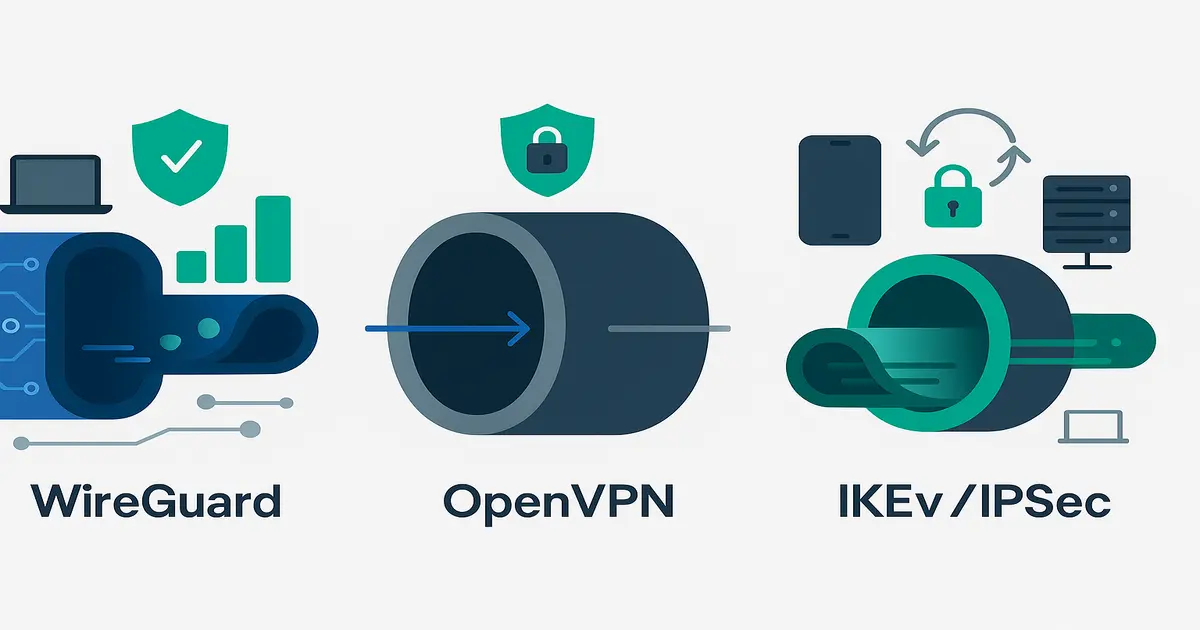
Popular protocols and what they mean for speed:
- WireGuard: newer, secure and the fastest of the common protocols.
- OpenVPN: solid security, slightly slower.
- IKEv2/IPSec: fast on mobile devices and good at switching networks (from Wi-Fi to mobile data, for example).
Check your VPN’s settings. If you’re using something older like PPTP or L2TP, you might want to upgrade. If your VPN supports WireGuard, switching to it is an easy speed boost.
3. Turn On Split Tunneling
You don’t always need every app to use the VPN. Spotify streaming music at home, for example, probably doesn’t need encryption.
Split tunneling lets you decide which apps or websites use the VPN and which don’t. With less traffic to carry, the VPN has more room to speed up.
For example:
- Use the VPN for your browser and torrenting app.
- Let YouTube and Spotify bypass the VPN directly.
You should notice the difference.
4. Restart Everything (Yes, Seriously)
Don’t underestimate the old “turn it off and on again” trick. It fixes more speed problems than you might expect.
Reboot:
- Your device
- The VPN app
- Your router and modem
A restart clears out temporary glitches and resets your connections, which might be all you need to get your speed back.
5. Use a Wired Connection (If You Can)
Wi-Fi is convenient, but it’s not always the fastest. If your VPN feels like it’s crawling on wireless, try plugging in with an Ethernet cable.
Why it helps:
- Stable connection
- Lower ping
- Less interference from walls, microwaves and the 93 Wi-Fi devices next door
If you’re gaming, downloading large files or streaming HD content, a wired connection makes a big difference.
6. Update Your VPN and Devices
Out-of-date software can be riddled with bugs and performance problems.
Make sure:
- Your VPN app is current
- Your device’s operating system is up to date
- Your network drivers (especially for Windows users) are updated
VPN providers often improve performance in new releases, so an old version can leave you with slowdowns that have already been fixed.
7. Close Background Apps and Tabs
Apps hogging bandwidth in the background will drag your VPN speed down.
Here’s what to close:
- Streaming services (think Spotify, Netflix background tabs)
- Cloud syncing (Google Drive, OneDrive, Dropbox)
- Game launchers doing surprise updates
- Unused browser tabs
Your VPN runs noticeably smoother when the rest of your system isn’t competing for bandwidth.
8. Try a Different VPN Provider
Sometimes the problem is the VPN itself.
VPNs aren’t all built to the same standard. Free ones are often overloaded and underperforming. Speeds vary among paid services too.
Look for:
- A VPN with servers tuned for speed
- Support for WireGuard or similar fast protocols
- Transparent performance reports
- Positive reviews for speed and consistency
If your VPN regularly drops or lags, it might be time to shop around.
9. Tweak Your DNS Settings
DNS (Domain Name System) works like the internet’s phone book. A slow DNS server can delay your connections.
Some VPNs come with their own DNS services. Others let you pick.
Fast and trusted DNS options:
- Google DNS: 8.8.8.8 and 8.8.4.4
- Cloudflare DNS: 1.1.1.1
- OpenDNS: 208.67.222.222 and 208.67.220.220
You can usually set these in your device’s network settings or within the VPN app itself.
10. Avoid Peak Hours
The internet has rush hours.
Even the best servers can lag when everyone’s online. If you stream at 8pm, you’re competing with half the neighborhood. Mid-afternoon or late-night sessions can run smoother.
Try shifting your VPN-heavy activities:
- Download overnight
- Stream during lunch breaks
- Avoid Friday evenings (plenty of other people are binge-watching then)
Recap
A VPN shouldn’t turn your internet use into a test of patience. With a few tweaks you can keep the peace of mind and keep your speed up.
Here’s what you can do:
- Choose a nearby, less crowded server
- Try a faster protocol like WireGuard
- Use split tunneling to reduce load
- Restart your system and devices
- Plug in with an Ethernet cable
- Update your software regularly
- Close unnecessary background apps
- Switch to a better VPN provider (if needed)
- Use fast DNS settings
- Avoid peak usage times
A little fine-tuning is usually enough to take a VPN from slow and steady to fast and secure.